WHMCS Payment Gateway – Accept Cryptocurrency Payments
If you run a hosting or SaaS business powered by WHMCS, you know that reliable and flexible payments are the backbone of customer satisfaction. However, traditional gateways often come with high fees, chargebacks, and geographic restrictions. The whmcs payment gateway by Crypoverse eliminates these problems by letting you accept cryptocurrency payments directly within WHMCS. It’s secure, borderless, and quick to set up -giving your clients more flexibility while you enjoy faster, lower-cost transactions.
Why Choose Crypoverse WHMCS Payment Gateway Plugin
The Crypoverse WHMCS payment gateway is built to simplify crypto payments for hosting providers, domain resellers, and online service businesses. Here’s why it stands out:
- Multi-Crypto Support – Accept Bitcoin, Ethereum, BNB, Polygon, Litecoin, and all stablecoins like USDT and USDC.
- Easy Integration – Simple setup through the WHMCS admin interface, no coding required.
- Secure Transactions – Blockchain-powered payments with zero chargeback risk.
- Automated Payment Handling – Invoice creation, confirmation, and payment verification all happen in real time.
- Regular Updates & Support – Fully compatible with the latest WHMCS versions and updates.
- Customizable Payment Flow – Configure currency preferences, wallet display options, and payment messages to match your business style.
Crypoverse vs Traditional Payment Gateways
| Feature | Traditional Gateways | Crypoverse WHMCS Payment Gateway |
|---|---|---|
| Global Access | Limited by region | Worldwide, borderless |
| Fees | High transaction costs | Low crypto processing fees |
| Chargebacks | Frequent and costly | Zero chargebacks |
| Speed | 2–5 business days | Instant confirmations |
| Privacy | Requires sensitive data | Pseudonymous blockchain payments |
Benefits of Accepting Cryptocurrency Payments on WHMCS
Accepting crypto through Crypoverse gives WHMCS users the flexibility of digital payments with the power of automation.
- Global Client Reach – Serve customers anywhere without currency or regional barriers.
- Lower Transaction Costs – Reduce payment processing fees compared to cards or PayPal.
- Instant Settlements – No waiting for bank transfers or third-party approval.
- Enhanced Security – Transactions are verified and recorded on the blockchain.
- Recurring Payments – Ideal for hosting renewals, subscriptions, and monthly billing cycles.
Pricing and Fees
The whmcs payment gateway fees through Crypoverse are among the lowest in the industry.
- No setup or monthly fees.
- Transparent transaction costs.
- Auto-conversion to stablecoins to avoid price volatility.
- Instant settlements in your Crypoverse wallet.
Step-by-Step Guide: How to Install Crypoverse WHMCS Payment Gateway Module
Here’s how you can quickly integrate the Crypoverse WHMCS payment gateway module into your WHMCS system. Before starting, ensure you have a WHMCS admin account and a Crypoverse merchant account set up.
1. Create Your Accounts
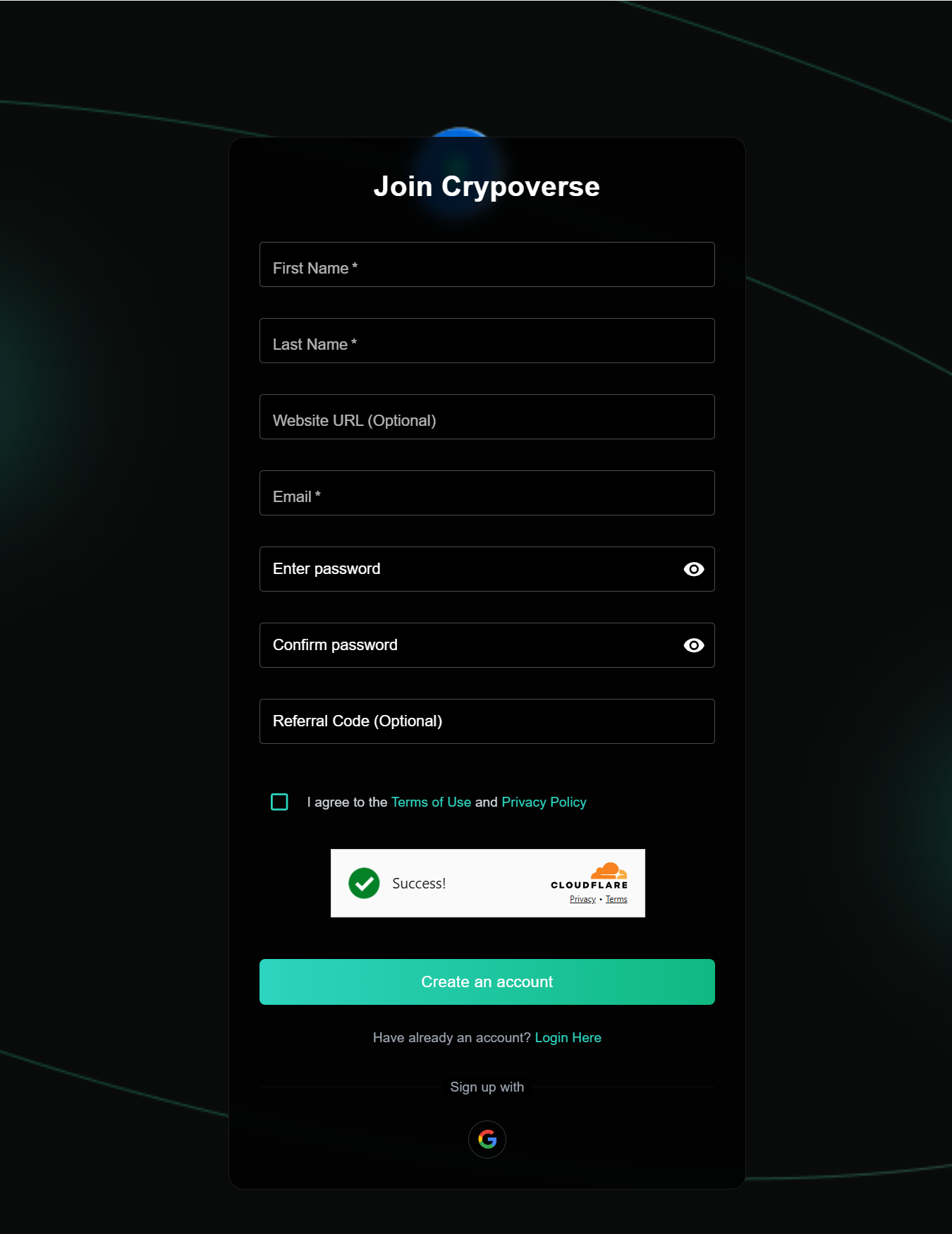
WHMCS Account: Log in to your WHMCS Admin Panel.
Crypoverse Account: Visit Crypoverse and create your merchant account to receive crypto payments securely.
2. Download the Plugin Module
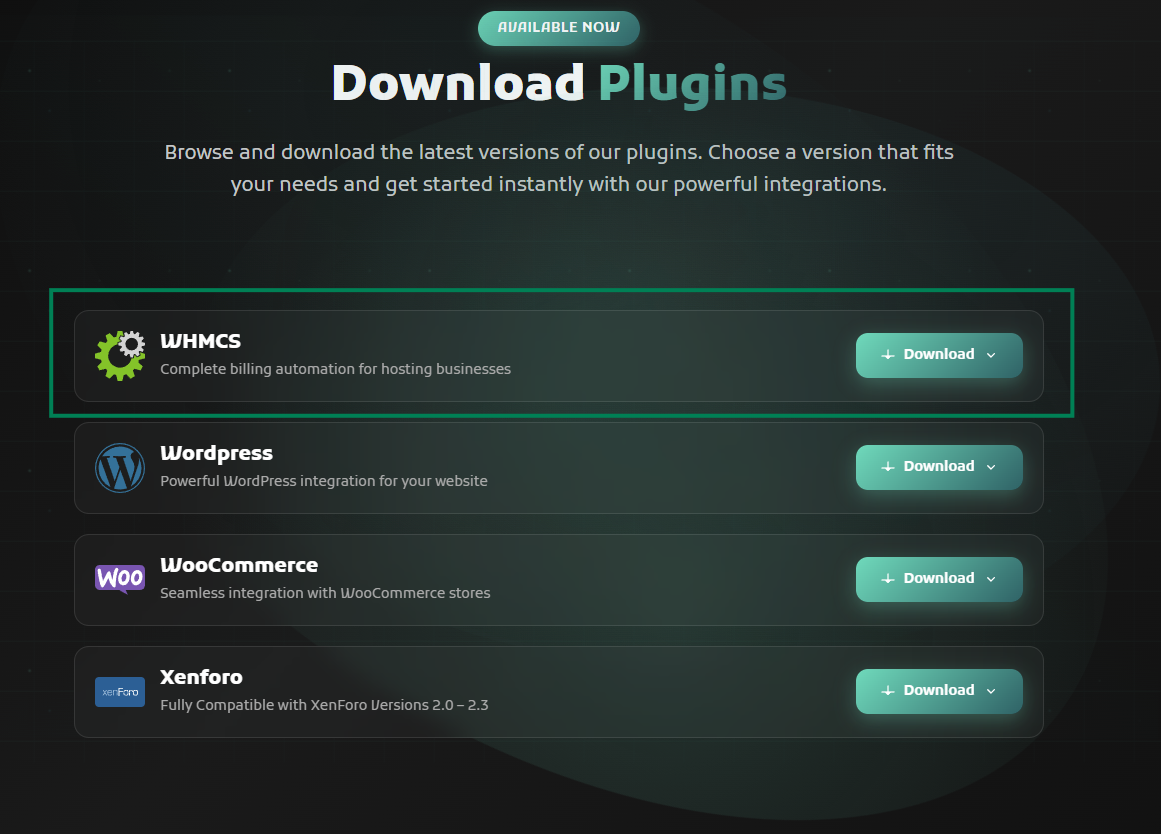
Navigate to: Crypoverse → Developers → Plugins and find the “WHMCS Payment Gateway Module.” Click Download to get the plugin files.
3. Upload the Module to WHMCS
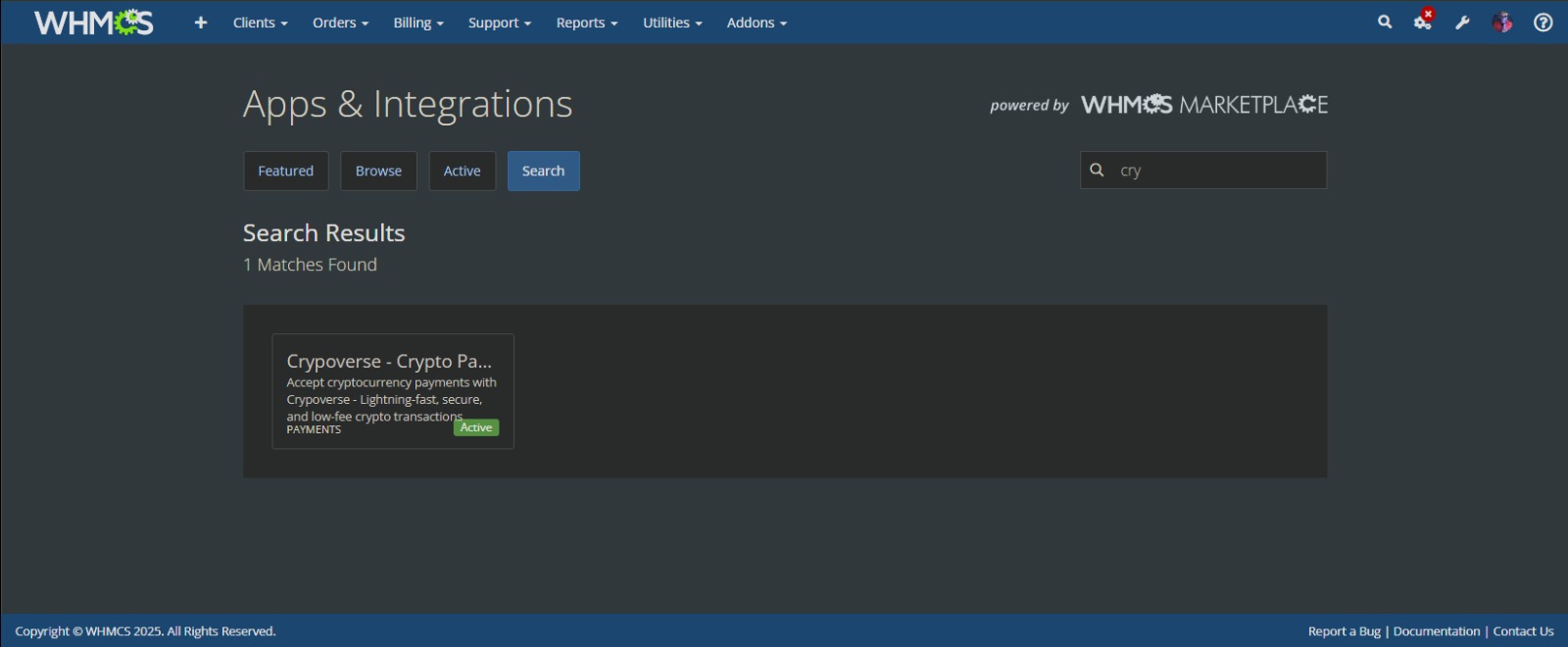
Log in to your WHMCS dashboard.
Go to Setup → Payments → Payment Gateways.
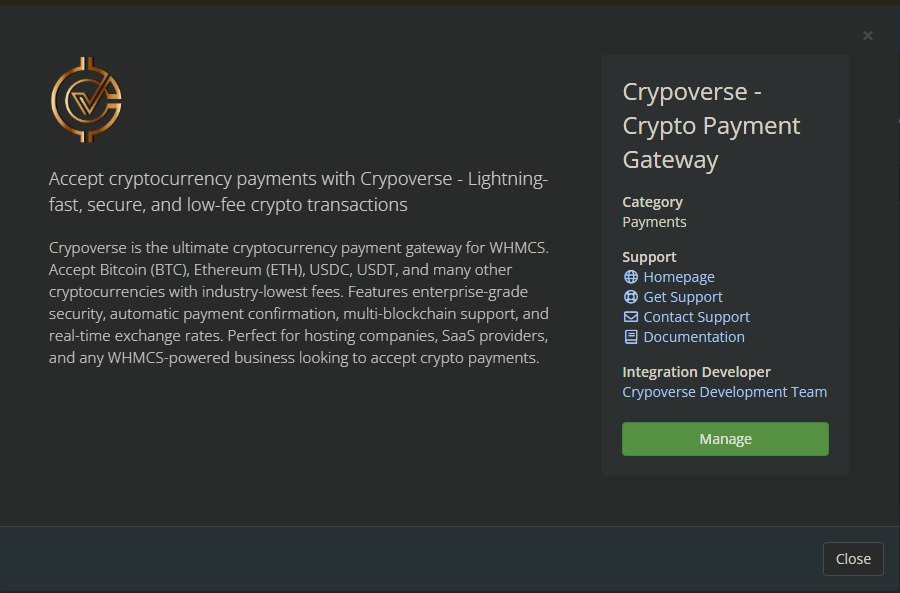
Click Manage Existing Gateways → Activate New Gateway → Crypoverse.
4. Configure API Details
Enter your Merchant ID and Platform API Key from the Crypoverse Dashboard.
Paste the Webhook/Callback URL shown in the settings panel.
Click Save Changes once complete.
5. Customize Payment Display
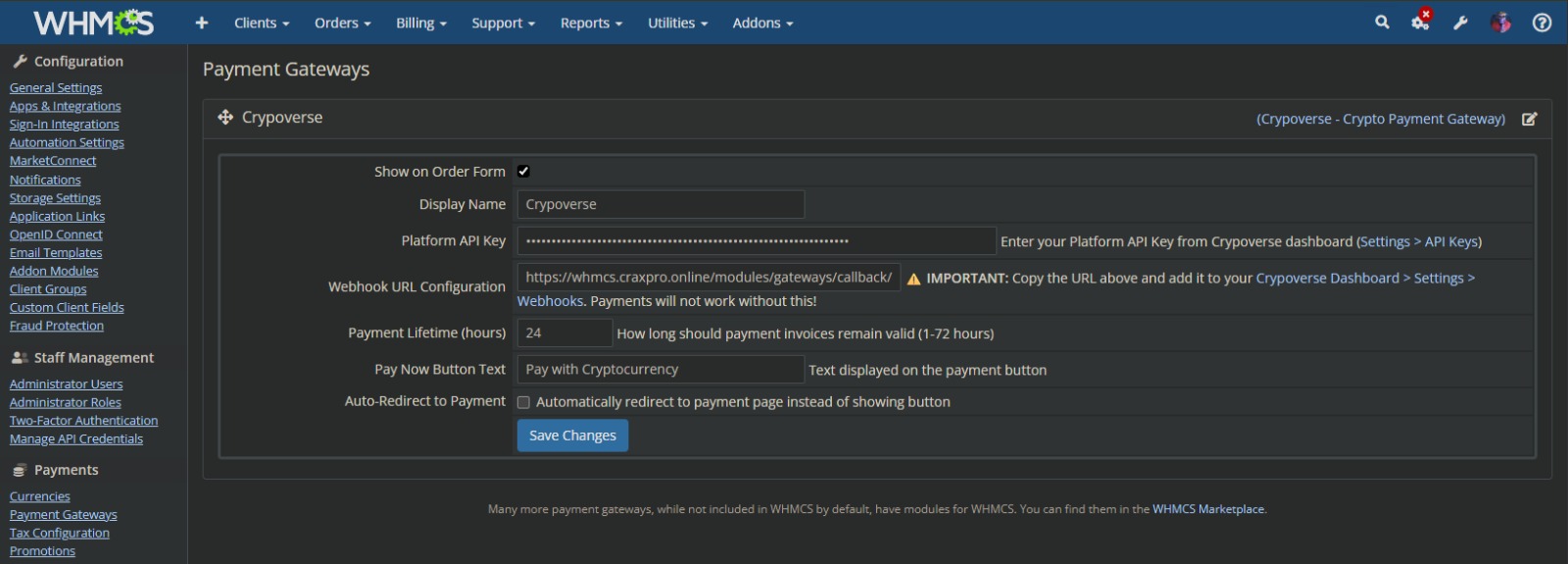
Change the Display Name (e.g., “Pay with Crypto via Crypoverse”).
Enable or disable Auto-Redirect to Payment Page.
Set a Payment Lifetime (hours) for invoice validity.
Choose which cryptocurrencies to accept in your Crypoverse dashboard.
(Optional) Enable Test Mode to simulate transactions before going live.
6. Activate and Test the Integration
Once configured, enable the gateway and test with a small transaction.
You’ll now see Crypoverse listed among your active WHMCS payment gateways.
✓ That’s it! Your WHMCS system is now ready to accept cryptocurrency payments globally through Crypoverse.